Songs
- Immortal Invisible
- How can I keep from singing
- Come Ye Sinners (I will arise)
- Arise my soul arise
- Tis so sweet
Songs
The always helpful Bruce Benedict, has posted several helpful ideas along with resources for Lent over at his blog… Cardiphonia. Click here and here.

This is from the “new city catechism”. This is a new catechism that Tim Keller has played a major role in putting together. There are 52 questions, designed to be used one a week.
Each question includes the answer, scripture reference, short commentary and a short video to help understand each question and answer.
You can set the bible version to either NIV or ESV and can set it to either child or adult (adult is more in depth). I use the adult version to prepare and the child version with my family.
All of the following resources are free.
There is an iPad app… Click here (best option for iPad)
an online version… Click here (best option for desktop or other web browsing device, where you can also find a downloadable pdf )
And if you use an iPhone or Android, you can either use the online version, or if you simply want the questions and answers, there is a great “creed and confessions” app…Click here that has this catechism available as a free download (I would recommend this app even if you don’t plan on using the “new city catechism”).
You can read more about the catechism from Tim Keller… click here
 As Dan continues in his series, “Planted. Growing.” We plan to sing the following songs together as tools to help us do both.
Behold our God
At Your Name
10,000 reasons
Better is one day
All I owe

Call to Worship
This morning God invites us to worship Him. The creator of everything, the One who right this very moment holds everything together, the One who knows every thought you and I have had today, yesterday and last week.
He could demand a long list of things we could attempt to accomplish before allowing us to come before Him.
Instead he sent Jesus to both invite us and make a way for us based on His merit and not ours.
“Come to me, all you who are weary and burdened, and I will give you rest. Take my yoke upon you and learn from me, for I am gentle and humble in heart, and you will find rest for your souls. For my yoke is easy and my burden is light.” – Matthew 11:28-30
Today we gather as tired, exhausted, broken people who can find rest because of what Christ accomplished.
Songs
Come Ye Sinners
Arise my soul
I’ll fly away
Give me Jesus
Word
Psalm 1
Below is a link to some thoughts from Harold Best and Bobby Gilles concerning style preferences of worship music.
My opinion is that, in most cases, if every song your (my) church sings is done in a style that you (I) like… then there is not enough diversity. Not only is it “okay” to find yourself a little uncomfortable with the music style sometimes … I think it is downright good.
Behold our God
Hosanna (baloche)
Better is one day
Grace like rain
Only You
Read Bobby Gilles thoughts… and for the record… I agree…
“CCM” or the contemporary worship record labels get a lot of blame for writing and publishing “dumbed down” song lyrics and exclusively bright, cheery (and some would even say frivolous) melodies, arrangements and record production. We’ve written about some of these things before here at My Song In The Night:
But we need to keep two things in mind: first, that the church is receiving great worship songs from major labels (think John Mark McMillan, Kathryn Scott, Matt Redman, All Sons & Daughters, Keith & Kristyn Getty, Paul Baloche, just to name a few).
The second is that the roots of what Michael Gungor called the “Christian music sound” and vapory lyrics extend far beyond the creation of CCM and the modern praise & worship music movement. From Paul Westermeyer’s With Tongues of Fire: Profiles in 20th Century Hymn Writing:
Gospel hymnody challenged the church’s broader historic hymnic consciousness. The Dwight Moody-Ira Sankey campaigns in the last quarter of the 19th century produced a body of hymnody that … contained cheery compound triple and dotted rhythms, enticing mild chromaticism, the almost exclusive use of major keys rather than minor ones, and a lack of dissonance or musical argument to create tension. It developed into the even lighter, semi-sacred, and more commercial music of the Billy Sunday era after the turn of the century, such as … “Brighten The Corner Where You Are,” … It often took over Sunday schools altogether and made inroads into mainstream Protestant services as well. Sometimes songs in this style replaced an entire hymnic heritage …
Indelible Grace founder Kevin Twit has talked about this as well in lectures at our church Sojourn, and elsewhere, pointing out that a gospel hymn like “In The Garden” is as far removed, lyrically, from the hymns of Watts, Newton, Steel and Wesley as the vaguest praise chorus today.
So What Does It Matter If The Roots Didn’t Start In The 1970s, 80s or 90s?
It matters because we shouldn’t blame any recent development or “industry” on a problem, since we are all susceptible, as were our forebears. The roots are in our own hearts, not in one decade or century. We often forget our responsibility (as songwriters, worship leaders or pastors) to lead. We forget that worship is, in part, an act of spiritual formation. We want to give people what works (meaning, what seems to get a good response, as far as our eyes and ears can tell).
And this was true before there was a formal “industry.” An industry is just a group of people. This is always about people: you, me, us, them. We want to reach others, and part of this involves giving them what they want. It certainly involves giving them music to which they can sing along and relate. But somewhere along the way, we may try too hard to give them too much of what they want and not enough of what they need (and remember that “we” are “they,” too — it is the responsibility of the entire church to teach and admonish one another with psalms, hymns and spiritual songs as we give thanks to God).
Defenders of shallow songs would say that Psalms and other songs and hymn fragments in the Bible range in complexity, length and theological depth. So why should every worship song be a four verse cannonball like “In Christ Alone?”
And that is true. Of course songs can range in complexity. As Harold Best has written, there is nothing inherently wrong with “shallow,” despite the negative modern connotations of the word. Shallow is simply not deep. And of course one person’s shallow is another person’s deep, for many reasons that may have nothing to do with intelligence or holy living. Sometimes when we catch a glimpse of God’s glory, all we can say is “Holy, you are holy.” This is good and right.
The problem comes if we drift into an exclusive use of slight, bright praise songs, because then we disobey the Bible’s own description of what congregational worship songs are supposed to do (Colossians 3:16). Shallow songs in the catalog of an artist, a church or a publishing house are not bad. What’s bad is their overuse. It’s like eating apples. They’re good for you, but an apple a day won’t keep the doctor away because they don’t contain all the vitamins and minerals we need. An exclusive “apple” diet isn’t good for anyone. Except apple farms.
- How can churches continue to encourage and mentor worship songwriters?
- What about seminaries? Are any of them doing anything solid or innovative in this regard
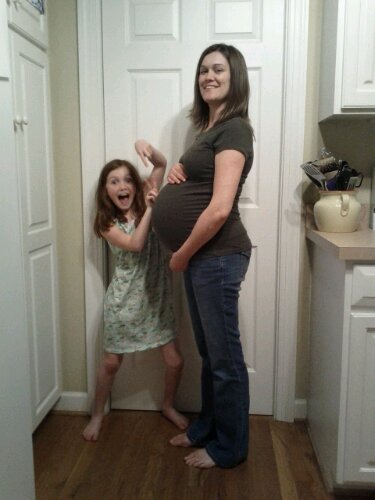
February 10, 2012
7:58 pm
6 lbs 9 oz


 Jason Sessoms